
Why Compounding Growth Is the Most Undervalued Digital Marketing Strategy for Investors
Most companies in the $20 to $400 million stage are doing a lot of digital marketing, but very few feel confident that it is actually

Are you a Google Analytics or Universal Analytics user who’s looking to switch to Google Analytics 4? If so, you’re in luck.
Let’s get started.
Start by visiting the Google Analytics website. You’ll probably have to login (your Gmail address).
Once you’ve entered your credentials, you’ll likely see a screen with a menu on the left-hand sidebar.
Look all the way down at the bottom of that menu and click the Admin option.
That will take you to a new page.
Keep in mind: if you don’t have any web properties, GA might take you to this page initially.
Once you’re in the Admin screen, you’ll see three columns: Account, Property, and View.
It’s up to you as to how you structure your relationship between accounts and web properties. For example, you might want to use a single account to manage multiple properties or you might want a 1:1 mapping between accounts and properties.
Once you’ve made that determination, create an account by clicking the Create account blue button at the top of the left-hand column.
Follow the prompts by filling in the forms and go through the process until your account is created.
Once your account is in place, make sure it’s selected in the left-hand “account” column. Then, click Create property at the top of the middle “property” column.
Give your web property a name and follow the rest of the prompts. Once you’re done entering everything, click the Create blue button at the bottom of the second page.
At that point, Google will give you the option to create a web stream to record important analytics. Select the web property option, fill out the form, and click the Create stream button.
With me so far? Good. This next part gets a little more complicated.
Take a look at the Tagging Instructions sections on the page you’re looking at now. Click the twistie next to Global site tag (gtag.js).
You’ll see a snippet of code in a box. Copy and paste that code into the <head> section of your website.
If you don’t know what that means, I strongly advise you to get in touch with a professional web developer who can help you out.
Once you’re done pasting the code, that’s it. Google will start tracking what happens on your website.
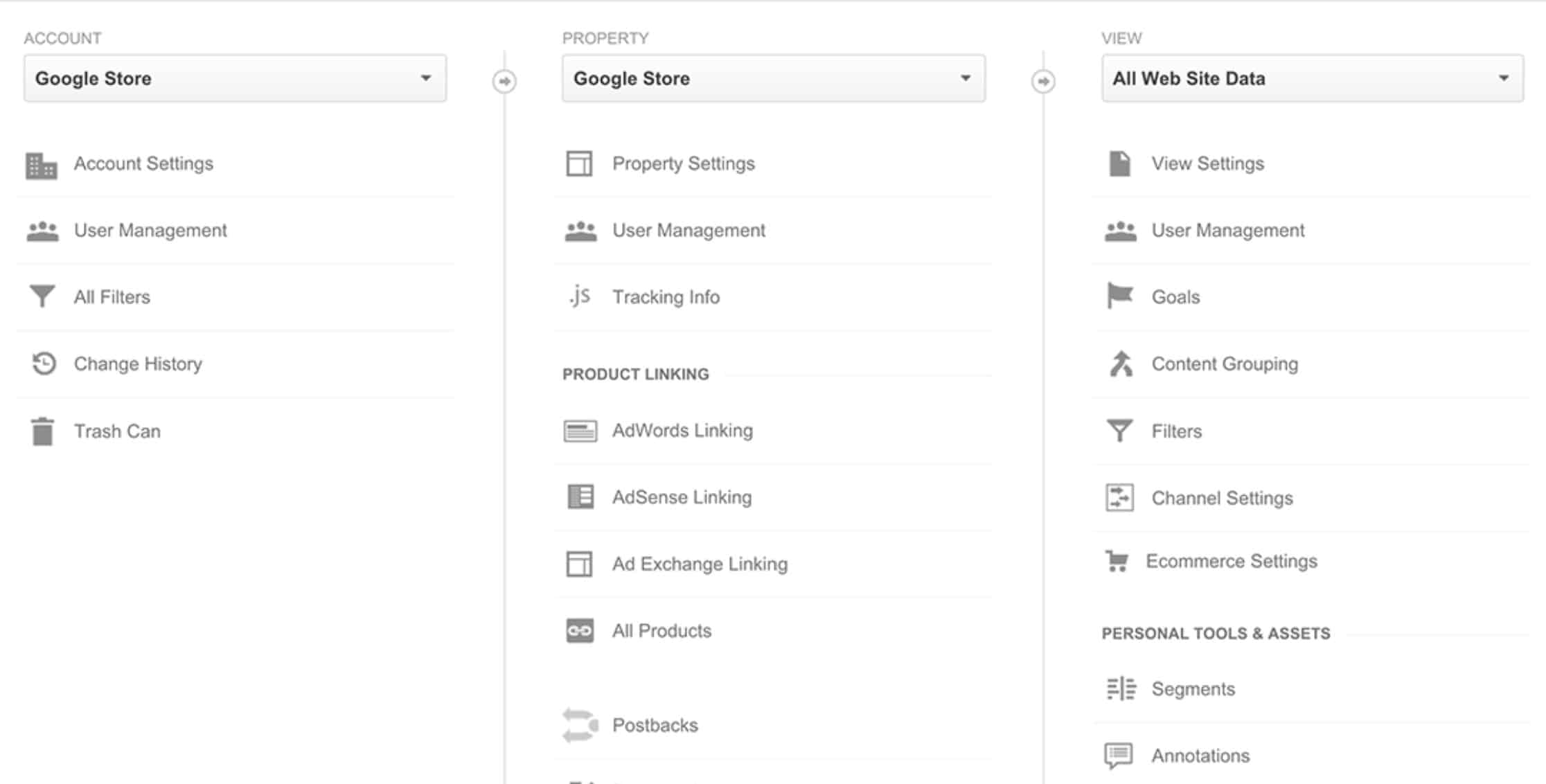
Go into Google Analytics and open the Admin page by clicking Admin on the lower part of the left-hand sidebar.
In the new page that appears, make sure your account is selected in the Account column. If you have only one account, it will already be selected.
In the Property column, select the web property you’d like to upgrade to Google Analytics 4.
Lower in that same Property column, click GA4 Setup Assistant.
Next, click Get started under “I want to create a new Google Analytics property.”
If your site already uses gtag.js, you’ll see the option to Enable data collection using your existing tags. Otherwise, you’ll have to add the code manually yourself (see the previous section for more info about that).
Click Create property.
At this point the setup wizard will:
And once all of that is complete, you should see a message to the effect of: “You have successfully connected your properties.”
If you’d like to verify that GA4 is collecting data, just select Realtime from report navigation. You should see activity in the Realtime report.
If you are running Google Analytics or Universal Analytics, you don’t need to rush to switch to Google Analytics 4.
However, upgrading will offer some new features.
The biggest advantage is the new reports.
With Google Analytics 4 property you can receive reports for a website, an app, or both a website and an app together.
This new tracking integration will help you stay on top of your website’s activity.
Now you know how to upgrade to Google Analytics 4.
There’s no rush on this. If you’ve got bigger fish to fry, feel free to put this one on the backburner.
But if you’re itching to move on up, go ahead and follow the instructions above.

Most companies in the $20 to $400 million stage are doing a lot of digital marketing, but very few feel confident that it is actually

Google Search Quality Rater Guidelines Compliance Checklist Google’s Search Quality Rater Guidelines (SQRG) are not a direct ranking algorithm, but they are the playbook human

Hey everybody, this is John Lincoln. It has been a while since I last updated this website. The last post here was on August 2,